Review & approve
Drafting is the AI's job; deciding is yours. The Review Center is where your team works through each drafted answer: reading the evidence behind it, editing where needed, and approving what's ready to send.
Open the Review Center
From a questionnaire card, click Review (or View). The Review Center opens with that questionnaire loaded, and you can switch to another from the picker at the top.
The screen is split in two: the question list on the left, and the answer detail on the right.
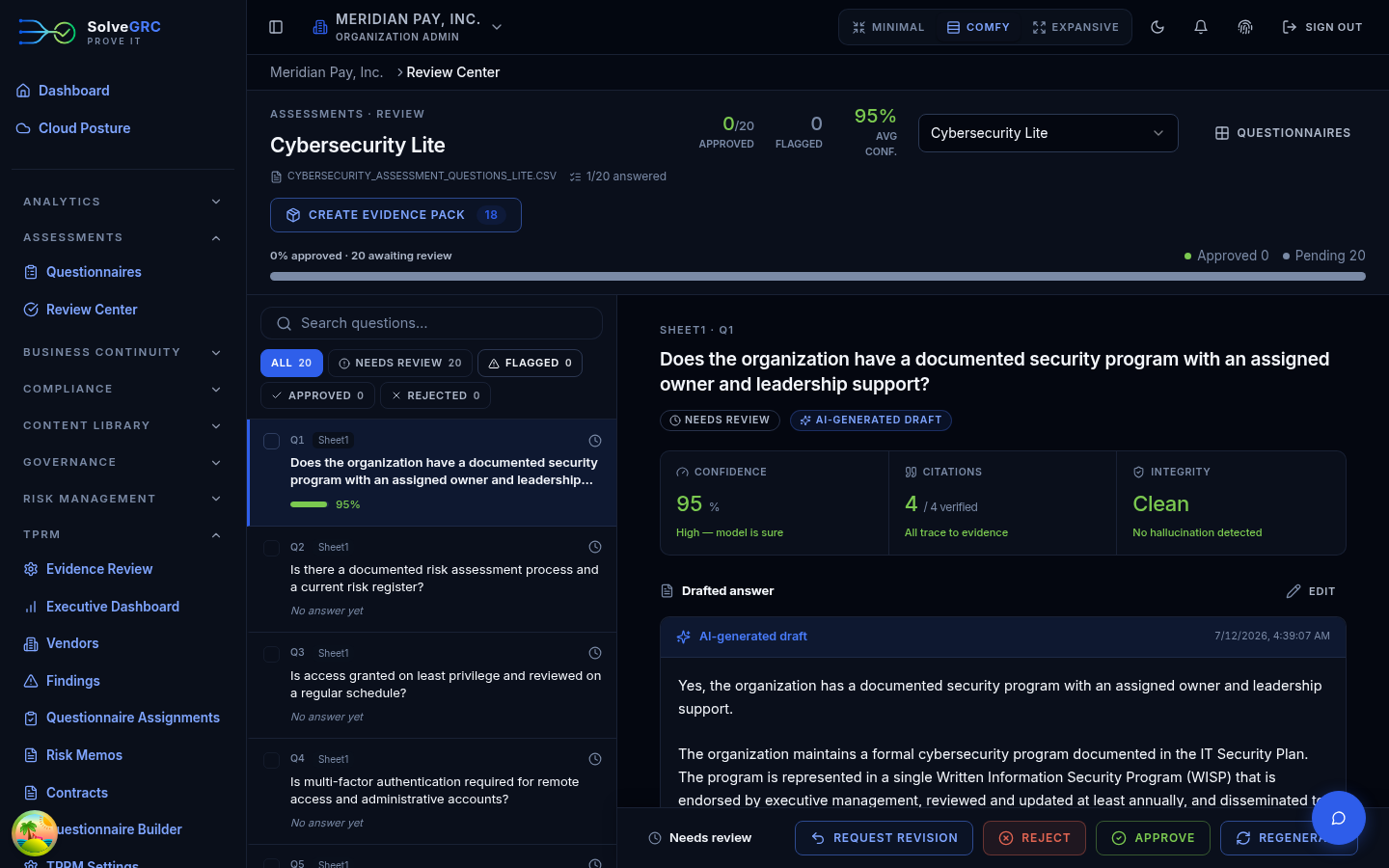
Across the top, a few numbers tell you how far along the questionnaire is: answered versus total, how many answers are flagged, the average confidence, and the share already approved.
Work the queue
The left list is how you triage. Filter it to focus:
- Needs review. Answers waiting on you (pending or sent back for revision), plus anything still unanswered.
- Flagged. Answers the integrity check flagged. Start here, since these are the ones most likely to need a fix.
- Approved and Rejected. What's already decided.
Search narrows the list further. Click any question to load its answer on the right.
Read the answer before you decide
The detail pane gives you everything you need to judge a draft without leaving the page.
- Trust panel. The confidence percentage, the count of verified versus problematic citations, and a clean-or-flagged integrity read, side by side.
- Inline citations. Numbered
[1],[2]chips in the answer text. Click one to jump to the source it came from. - Evidence and citations. The list of sources, each showing the exact passage quoted and a tag for whether that quote holds up. A citation that contradicts its source is called out in red.
When integrity flags an answer, it's telling you a citation didn't line up. The answer might still be right, but it needs a person to confirm or fix it before approval. Give flagged answers a proper look rather than approving them on autopilot.
Edit an answer
Click Edit, adjust the text, and Save version. SolveGRC keeps the previous wording as a version in the history and marks the answer as human-edited, so it's always clear which answers a person shaped. (Approving or rejecting without changing the text doesn't create a new version; only edits do.)
Approve, reject, or request a revision
Use the action bar at the bottom of the detail pane:
- Approve. The answer is good to send. SolveGRC stamps who approved it and when, then moves you to the next question.
- Reject. The answer shouldn't be used.
- Request revision. Send it back to be redrafted or rewritten.
If an answer needs a fresh draft, say you've just added a relevant policy, Regenerate re-runs the AI with your current evidence and returns a new pending draft.
Approve in bulk
For long questionnaires, select answers with the row checkboxes (or Select
all), then apply Approve, Reject, or Request revision to the whole
selection at once. Keyboard shortcuts speed it up: Ctrl/Cmd+A to select
all, Ctrl/Cmd+Enter to approve the selection.
Sort or filter by confidence and citation health, approve the clean, high-confidence answers in bulk, and spend your attention on the flagged and low-confidence ones. That's the fastest way through a large questionnaire, and it doesn't cut corners.
Collaborate on an answer
Open the Discussion tab on any answer to talk it through with your team. Comments thread, so you can reply in place, and you can tag a teammate with @mention to pull them in. They get a notification that links straight back to the exact answer. Mark a thread resolved once it's settled to tuck it out of the way.
Track versions and diffs
The History tab shows every version of an answer, newest first, with who changed it. View Diff lays two versions side by side with additions in green and removals in red. Restore brings an older version back. Note that restoring returns the answer to pending review, since the approved wording has changed.
What approval sets in motion
Approving isn't only a status change. When you approve an answer:
- It's stamped with your name and the time, for the audit trail.
- It becomes eligible as an Answer Library example, so future drafts of similar questions start from your approved wording.
- Depending on your organization's settings, it can be registered as evidence automatically, or you can register it yourself. See Register evidence and export.
Once every question in the questionnaire has an answer, SolveGRC advances the whole questionnaire to In review on its own. That's the module's finish line. From here you register evidence and export the answered copy.